Earlier blogs described several methods for importing data or inserting data into Hive tables. Similarly, I described how to export data from Hive to HDFS, a local file system, or a relational database management system. Aside from that, there is a direct technique to import and export data from Hive to HDFS, which is explained in this post.
Syntax for Export:
export table department to ‘hdfs_exports_location/department’;
Syntax for Import:
import from ‘hdfs_exports_location/department’;
Example:
Export table emp to ‘/user/cloudera/emp1’
The above command will export the table’s data into the specified directory. When exported it will export the data as well as metadata.
Import from ‘/user/cloudera/emp1’
For testing reasons, delete the table in Hive once you’ve exported the data and execute the command above. When the above command imports data from the ‘/user/cloudera/emp1’ directory, the table will be automatically produced. Please note that if no table name is given, the filename is assumed to be the table name.
Import table EmpAnotherTable from ‘/user/cloudera/emp1’
Since we supplied a table name, the above operation will collect the data from the same directory and create a new table. This implies that by supplying various table names, we may import the data as many times as we wish.
Screenshot-1:
Screenshot-2:
Screenshot-3: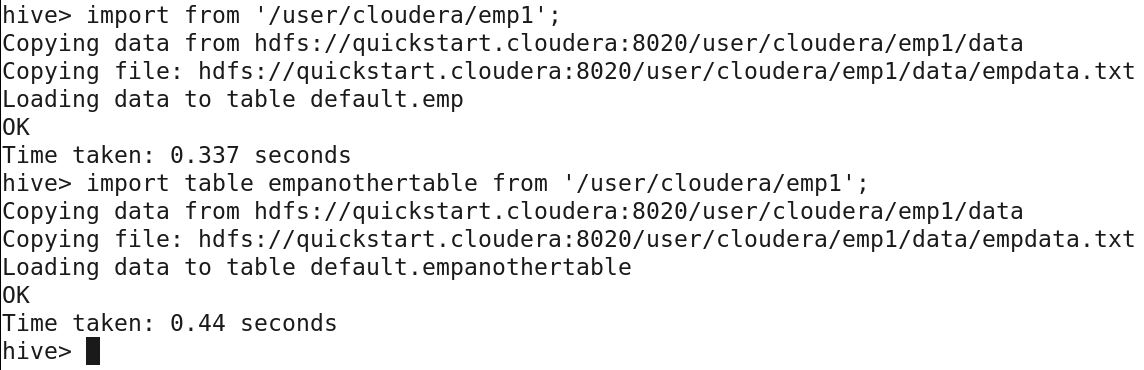
Specific partitioned data can be imported and exported, as we’ll see in the following post.
Hope you find this article helpful.
Please subscribe for more interesting updates.

 Big Data & SQL
One comment